
UPrint Studio RIP
RIP software: prepare, lay out and print
You already design. This prints it properly.
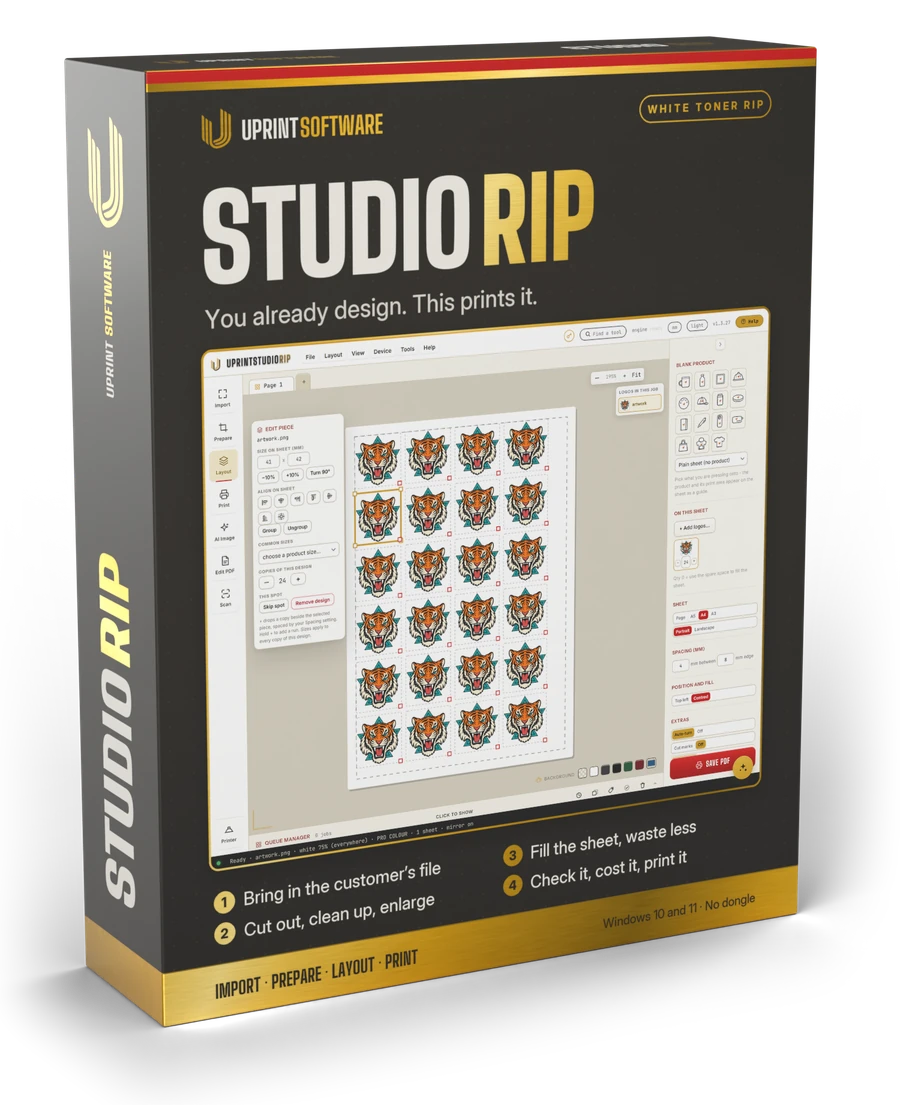
Import, prepare, lay out, print. Four steps, the white layer under your control, and colour measured on a real print engine. No dongle.
Quick fixes: ten ways to repair a file
Point at a fix. It tells you what it does.

Crop
Lets you drag a box over the image to frame the part you want to keep, then trims away everything outside the box.
Prepare tab · Quick fixes
Import any file
Drop it in. Anything.
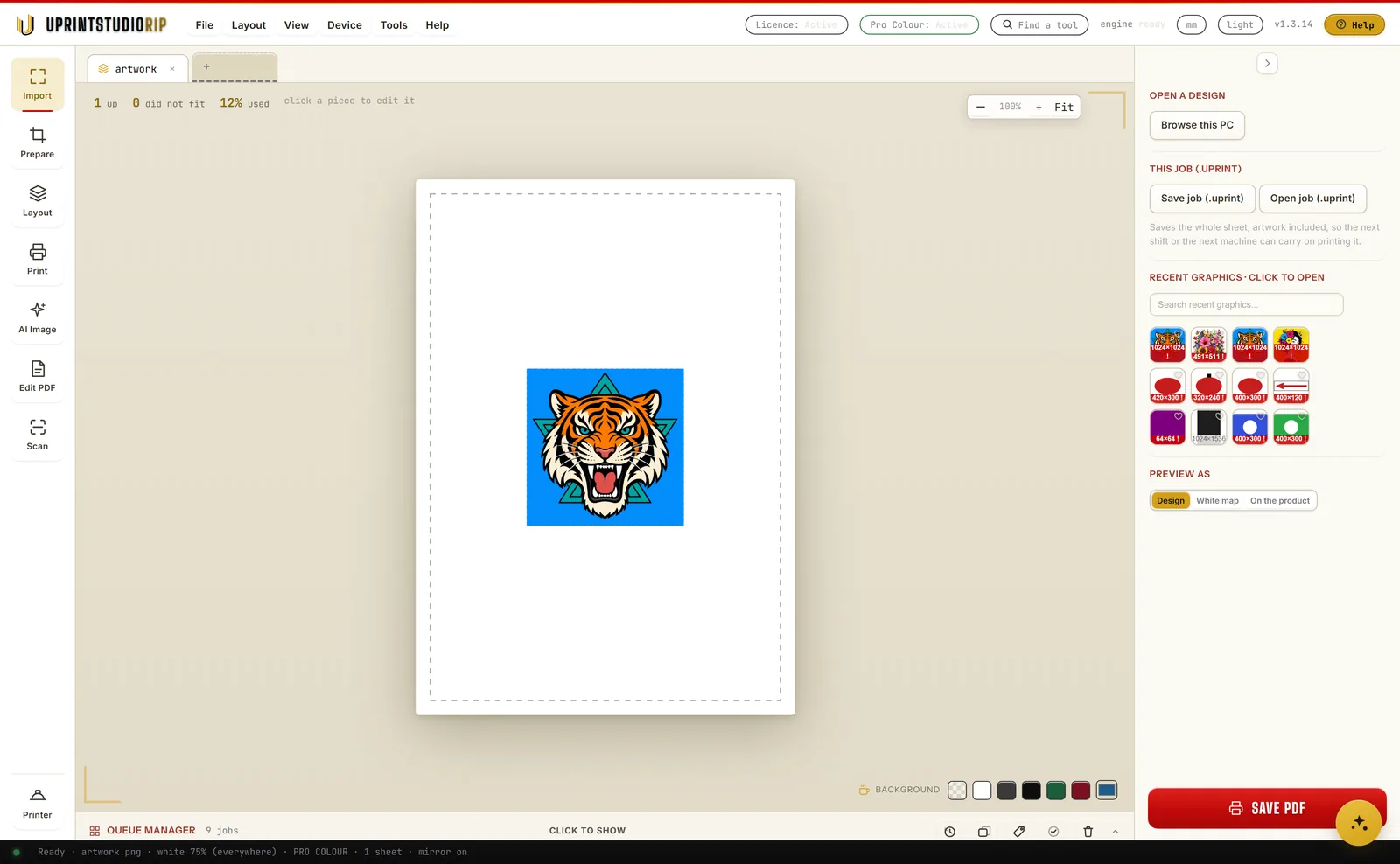
PNG, JPG, TIFF or PDF, dragged anywhere on the window, or start from a blank sheet. It cuts the background out on the way in and tells you the real size.
The numbers under the drop zone keep your place: 1 Import, 2 Prepare, 3 Layout, 4 Print. The same order every job, every day.
Scan a drawing
Paint it by hand. Print it on anything.
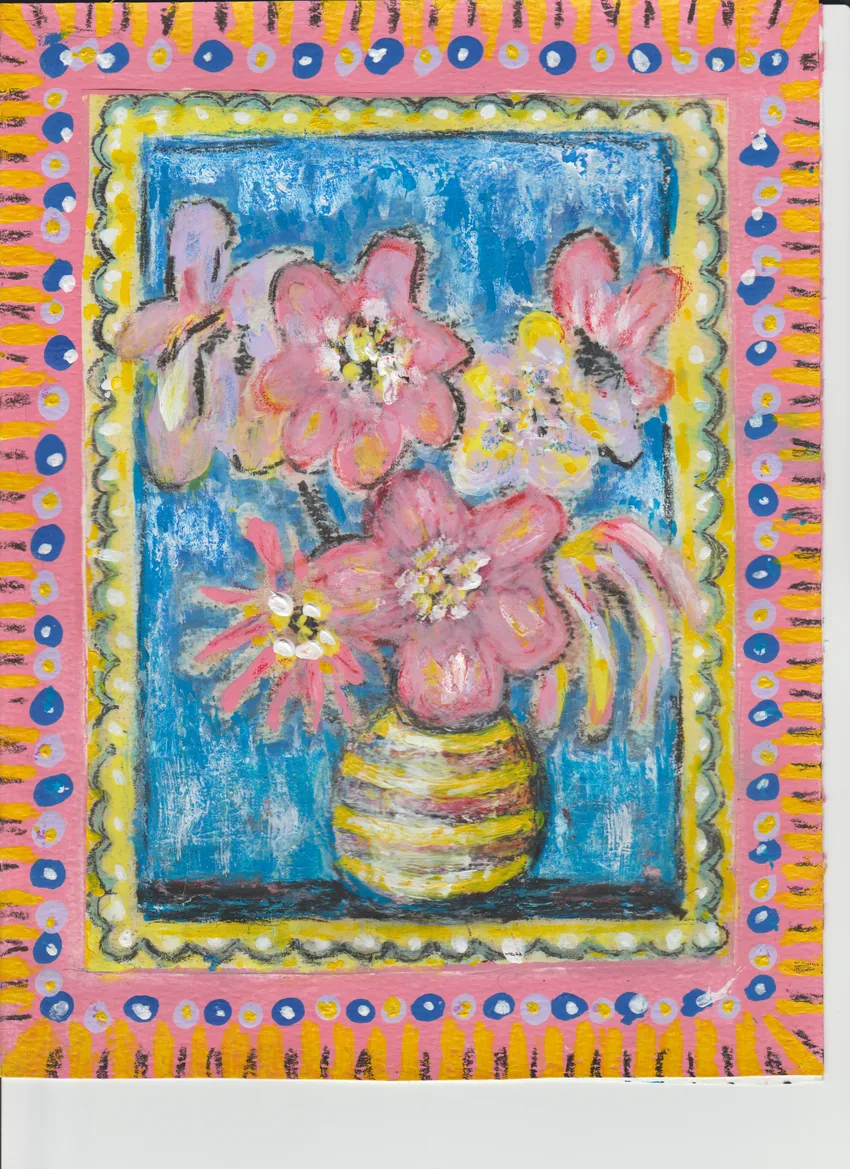
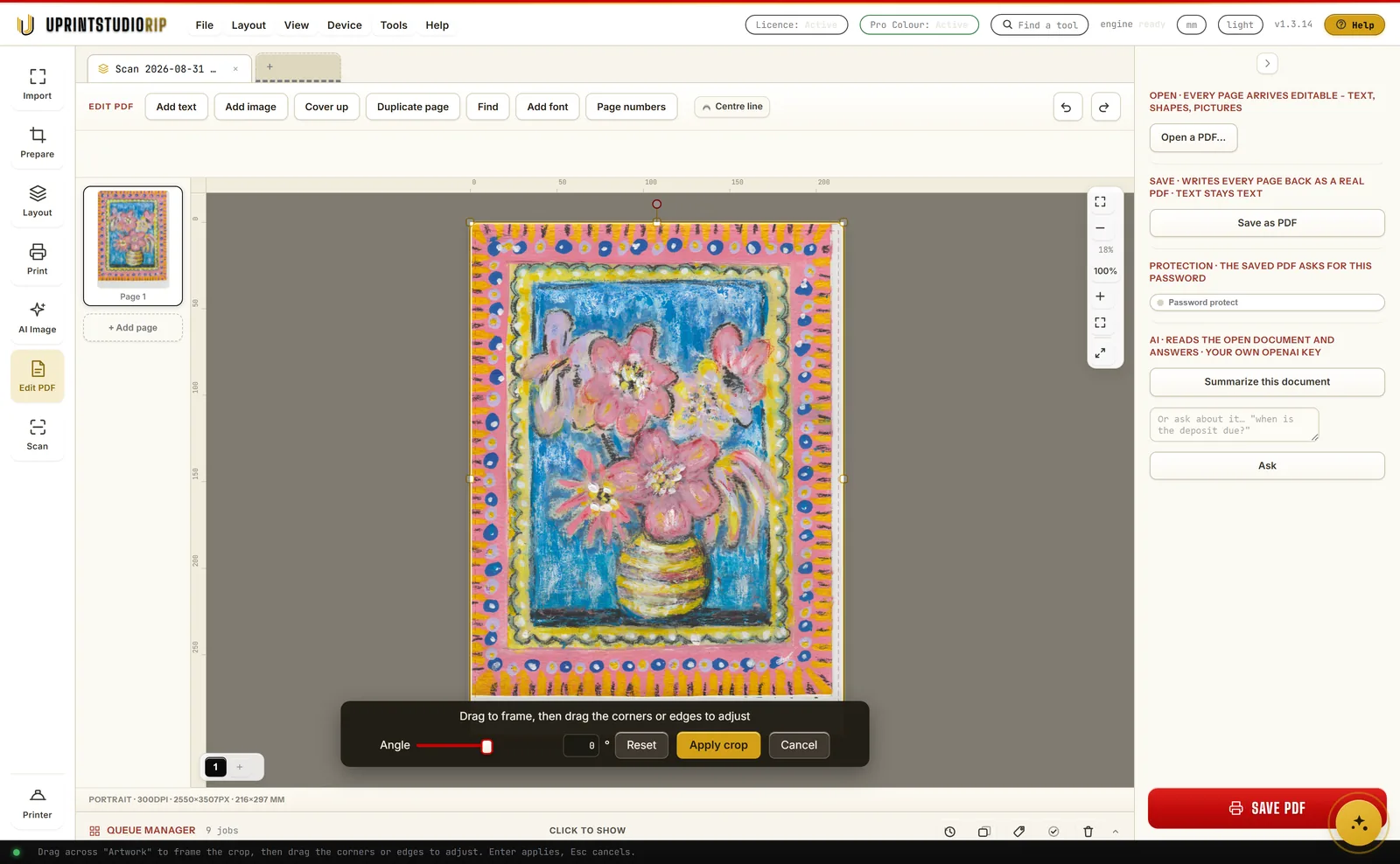
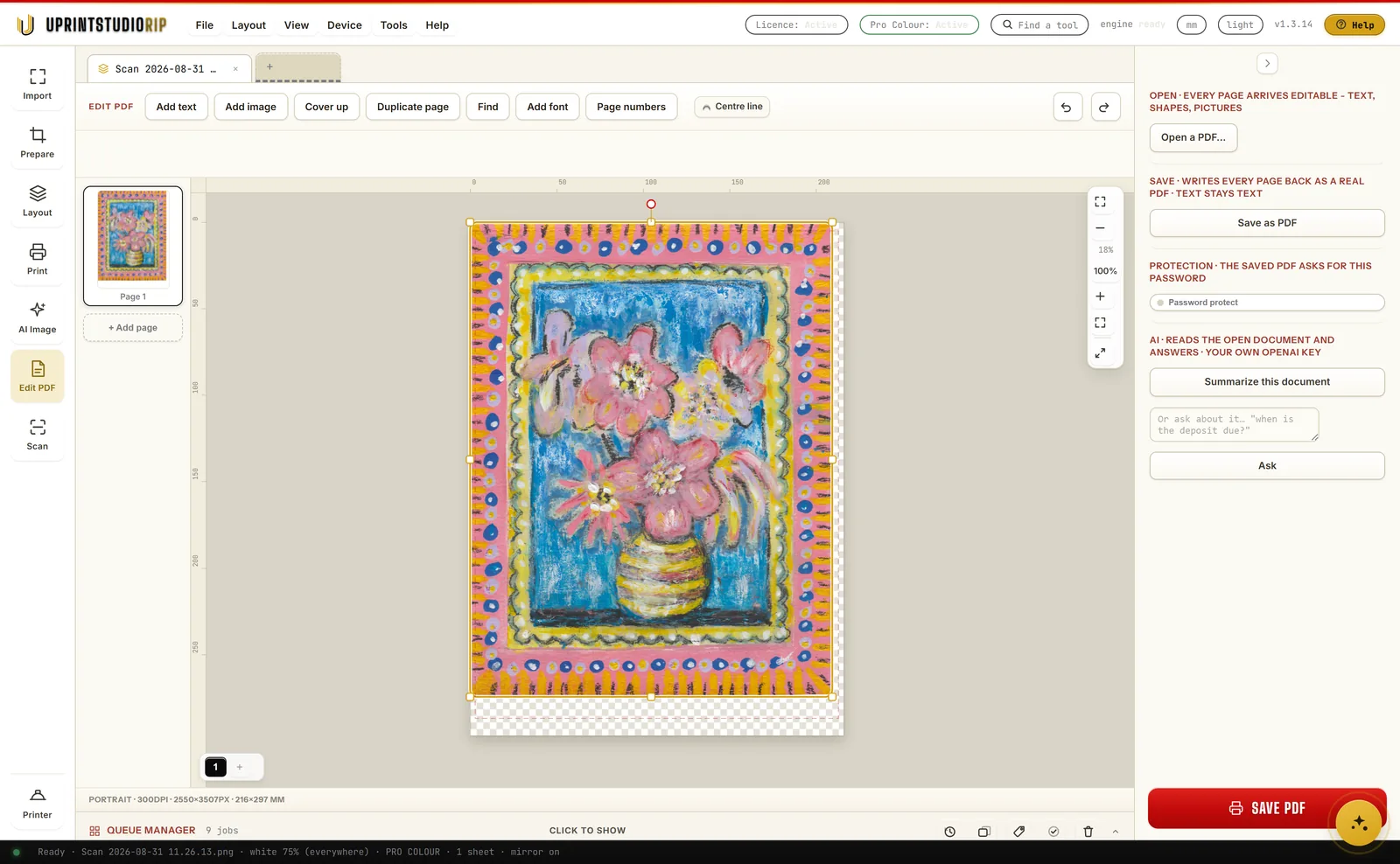
If you paint, draw or letter by hand, you do not have to learn to do it again on a screen. Put the work on the glass and scan it straight into the app. Everything below is one real card, scanned on a Canon flatbed, taken all the way through.
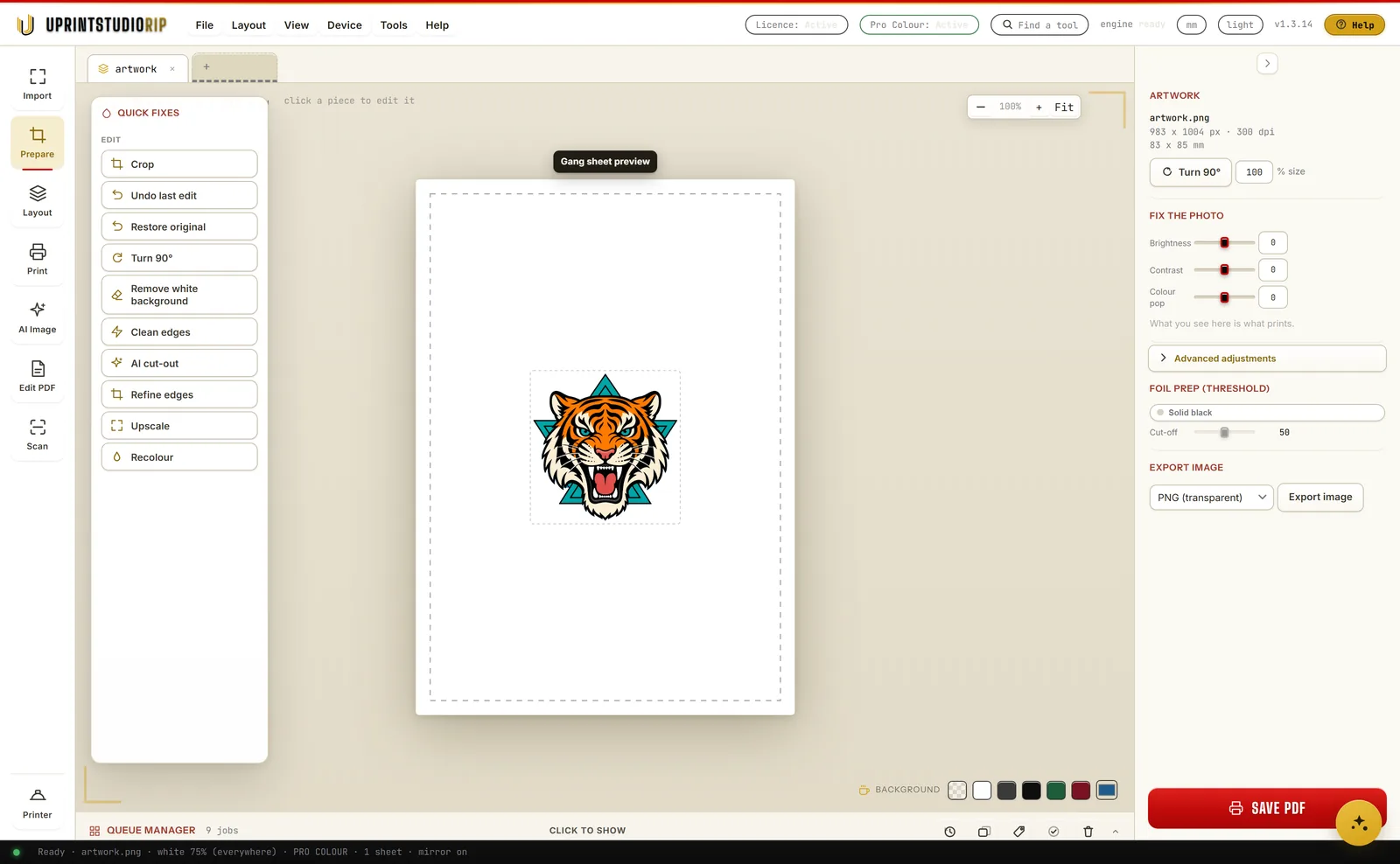
Prepare: fix the file
Fix the file you were sent.
Ten quick fixes down the left, from a crop to a halftone screen. On the right, brightness, contrast and colour pop, with the foil threshold underneath. What you see here is what prints.
New in 1.3.42The cut line now follows the outside edge of the artwork. Tick Cut too and it also cuts round the holes, like the middle of an O.
Auto cut-out: remove the background
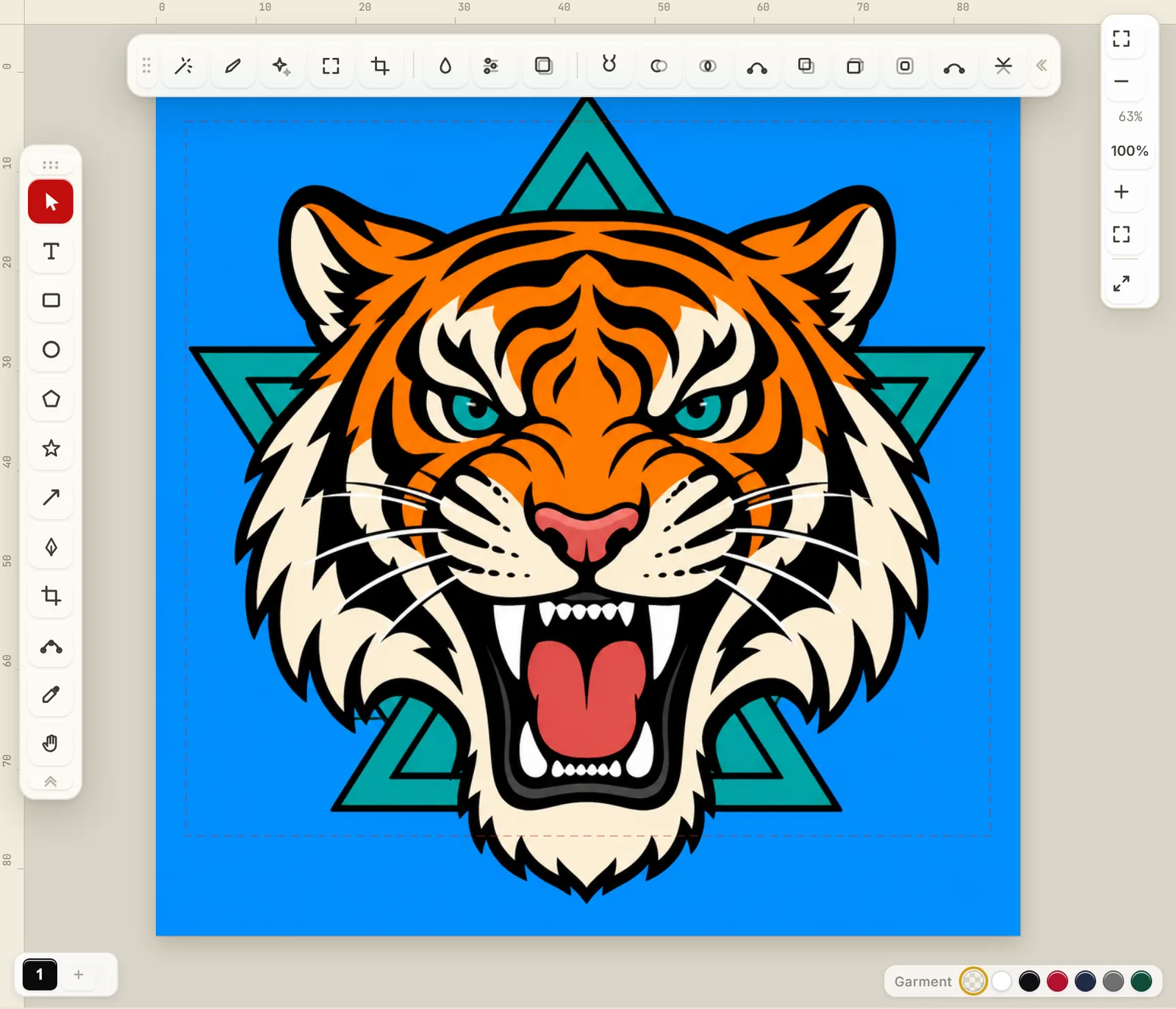
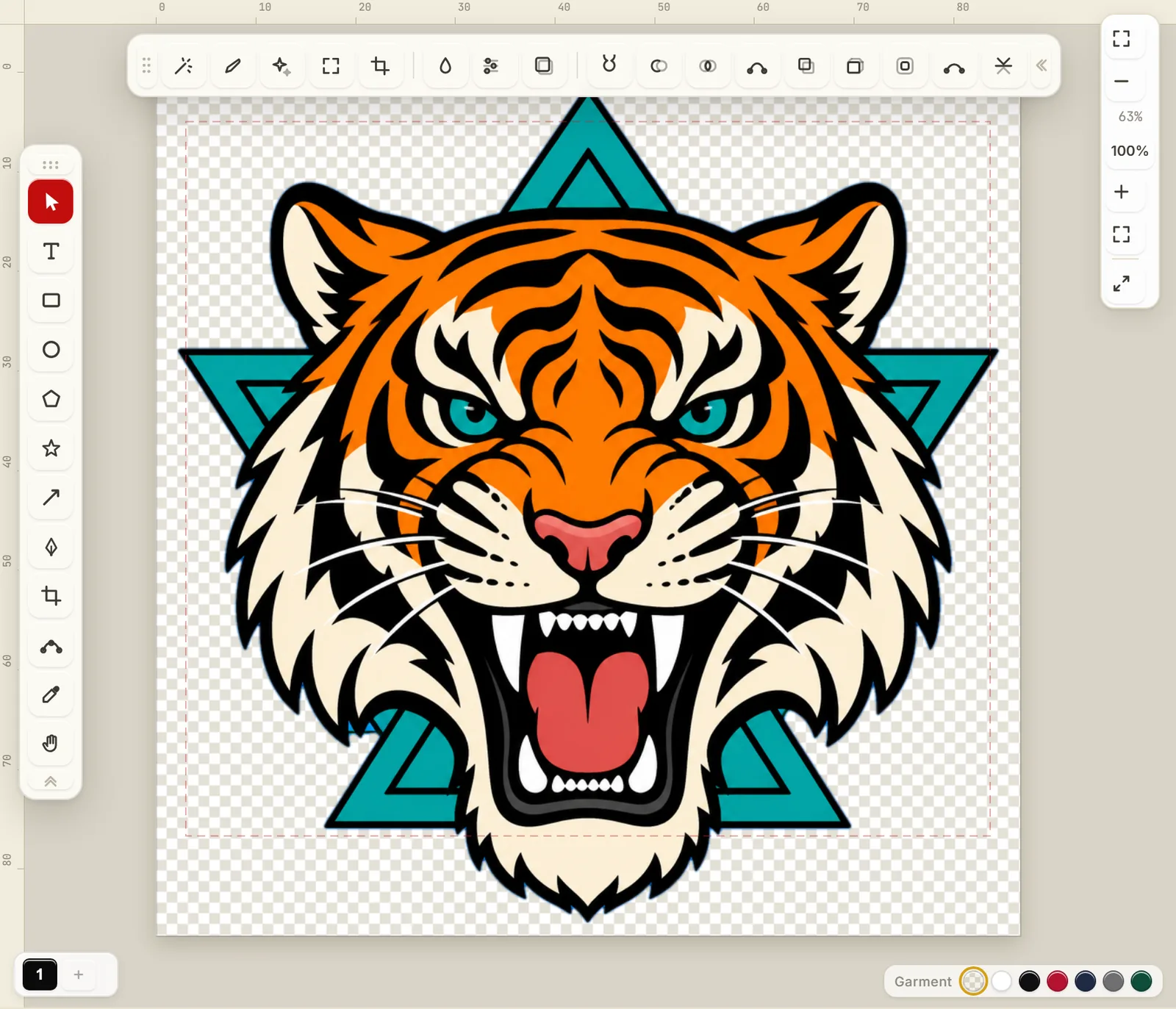
The box behind the logo, gone.
A customer sends a logo sitting on a solid square. Printed on a dark shirt that square is a slab of toner you paid for and nobody wanted. Two ways to get rid of it, and you pick whichever suits the file in front of you.
Refine edges
Then paint the last five percent by hand.
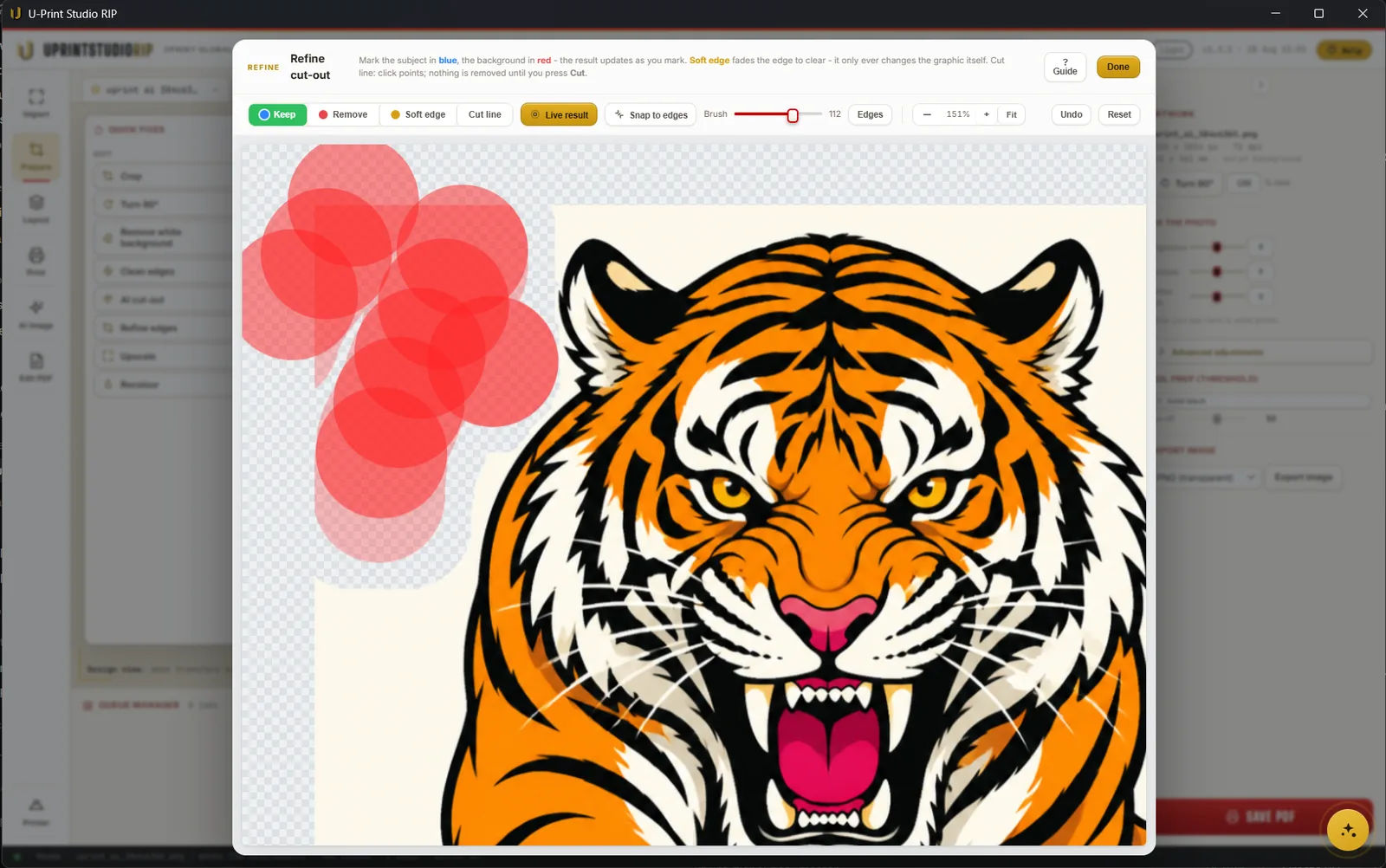
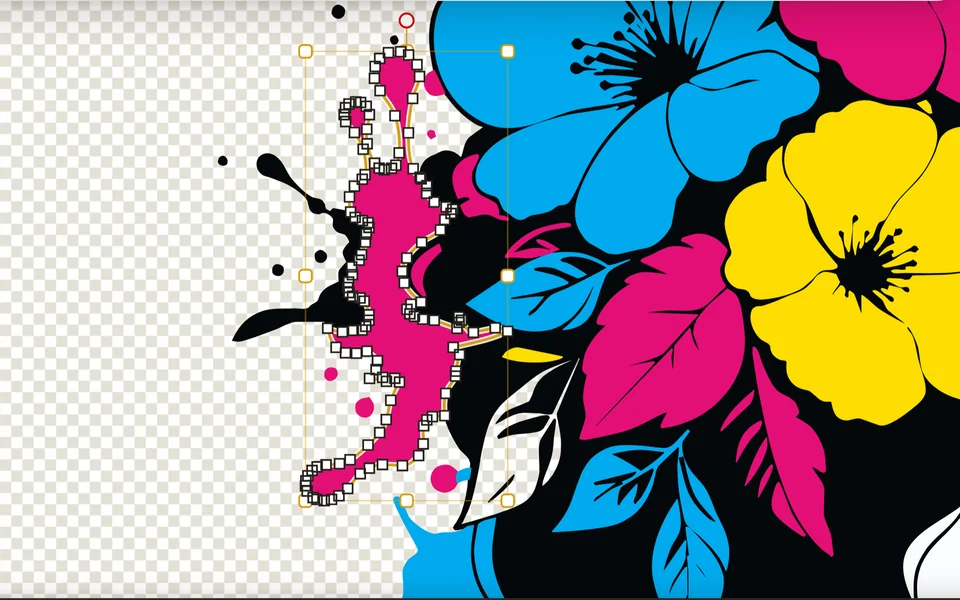
No automatic cut-out is perfect on hair, fur or a soft edge. Refine opens its own workspace over the artwork: Keep and Remove brushes, a Soft edge that fades a hard cut to clear, and a Cut line you place by clicking points. Snap to edges follows the artwork for you, and the result updates live as you mark.
It is not a preview and it is not a mask you have to keep managing. What you paint is written back as full resolution artwork, so the thing you print is the thing you fixed.
Keep and remove
Brush back a strand the cut-out ate, or wipe out the bit it kept.
Soften the edge
Fade a hard cut so it does not read as a sticker on the garment.
In both editions
Refine edges sits in Studio's Quick Fixes and on the Design canvas. Nobody has to upgrade to tidy an edge.
Palette: multi-colour halftone
Pop-art dots, in any colours you like.
Palette turns the whole picture into bold, hard dots, the comic-book look. Keep the picture’s own colours, pick one of 40 colour sets, or choose your own 2 to 6 colours. The gaps are real holes, so the shirt shows through.
This is the app’s own Palette code, running in your browser on a 10 cm (3.9 in) wide print. Drag the gold knob out for bigger dots, in for smaller, round to turn them, the same as in the app, UPrint 1.3.42.
- 1In the Halftone bar, pick Palette.
- 2Choose the colours, and a light or a dark shirt.
- 3Drag the gold knob on the picture: out for bigger dots, round to turn them. Then press Apply.
Close-ups in Original colours: only the dot setting changes from shirt to shirt. Each is a photo of plain shirt fabric with the print laid on. Every dot was made by the app’s own halftone engine (version 1.3.42) at the real print size, 22 to 26 cm (8.7 to 10.2 in) wide. Tap a shirt to see it bigger.
- Design RIP
- Design canvas › Halftone › Palette
- Studio RIP
- Prepare › Quick fixes › Halftone › Palette
Halftone screens
The streetwear halftone look, in a few clicks.
Make a design dissolve into dots at its edge, turn just one colour into dots, or screen the whole picture. It is the look designers build by hand. Here you need no design skills: pick one of seven dot shapes, set the size, press Apply. The gaps are real holes, so the shirt shows through and the print breathes.
Click the colour button, then click a colour on the artwork. Only that colour turns to dots. Every other colour stays exactly as it was, and the dots never land on another colour.
Colour: the magenta · Round · Detail 25 LPI · Toner 55% · picture 10 cm (3.9 in) wide
- Design RIP
- Design canvas › Halftone, or Object › Halftone screen
- Studio RIP
- Prepare › Quick fixes › Halftone
Every dot here was made by UPrint Design RIP 1.3.40. The close-ups are cut straight from the file it saved, then saved as WebP for this page. Every picture was made with the app’s own AI image tool and upscaled in the app first; the flower picture and the lion were also cut out in the app. The shirt colour is only the background on this page.
Layout: fill the sheet
How many fit, and what it wastes.
Press Fill the sheet and it works out how many fit and lays them out. The numbers that matter sit across the top: how many are up, how many did not fit, and what percentage of the sheet you are actually using. The sheet is the expensive part.
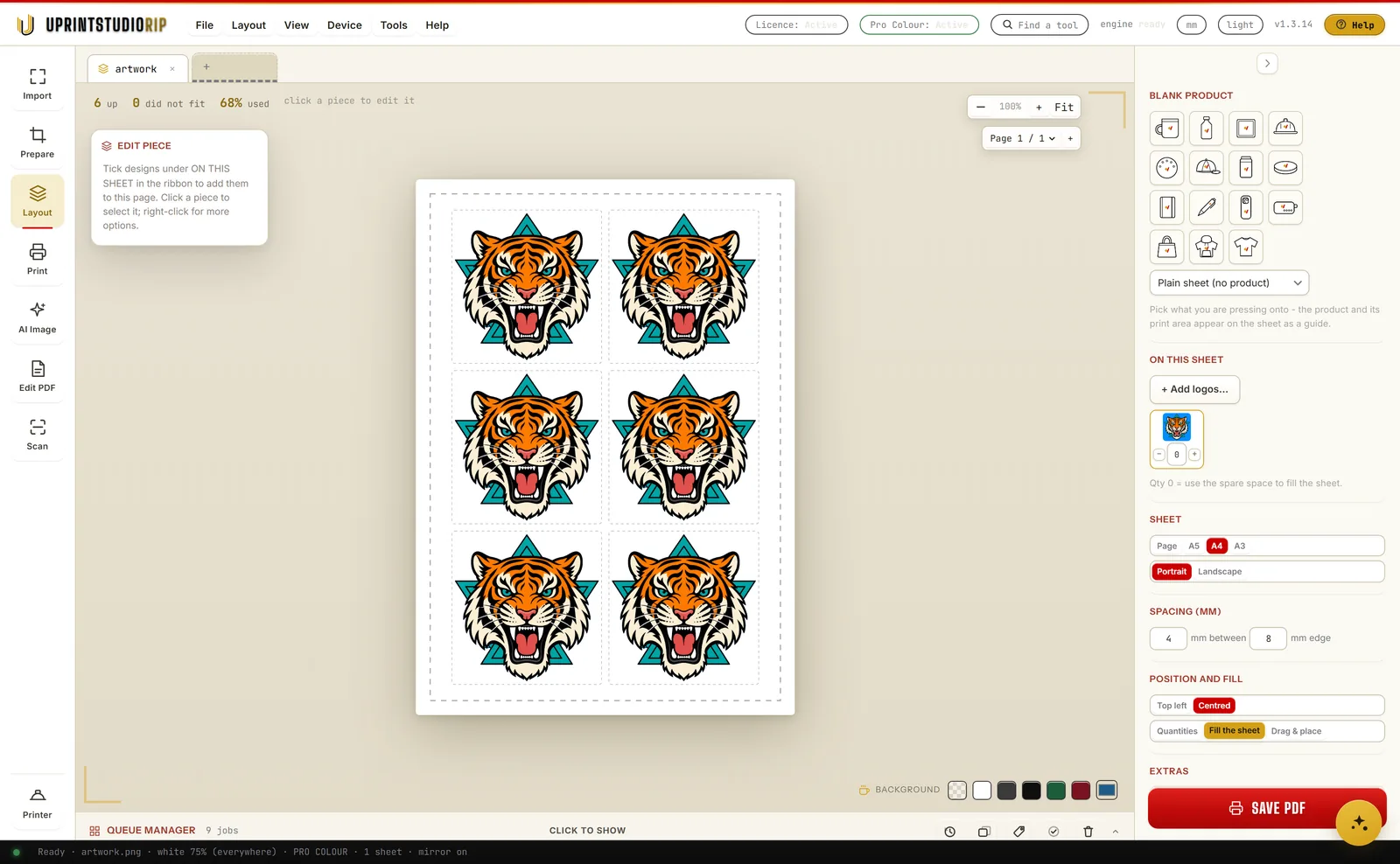
Everything that decides the job, on one panel.
Printer, paper and product, and the white under the print. Choose white everywhere or only under the colours, trim its edge in pixels, and press How it will print to check the artwork against this press before the paper goes through.
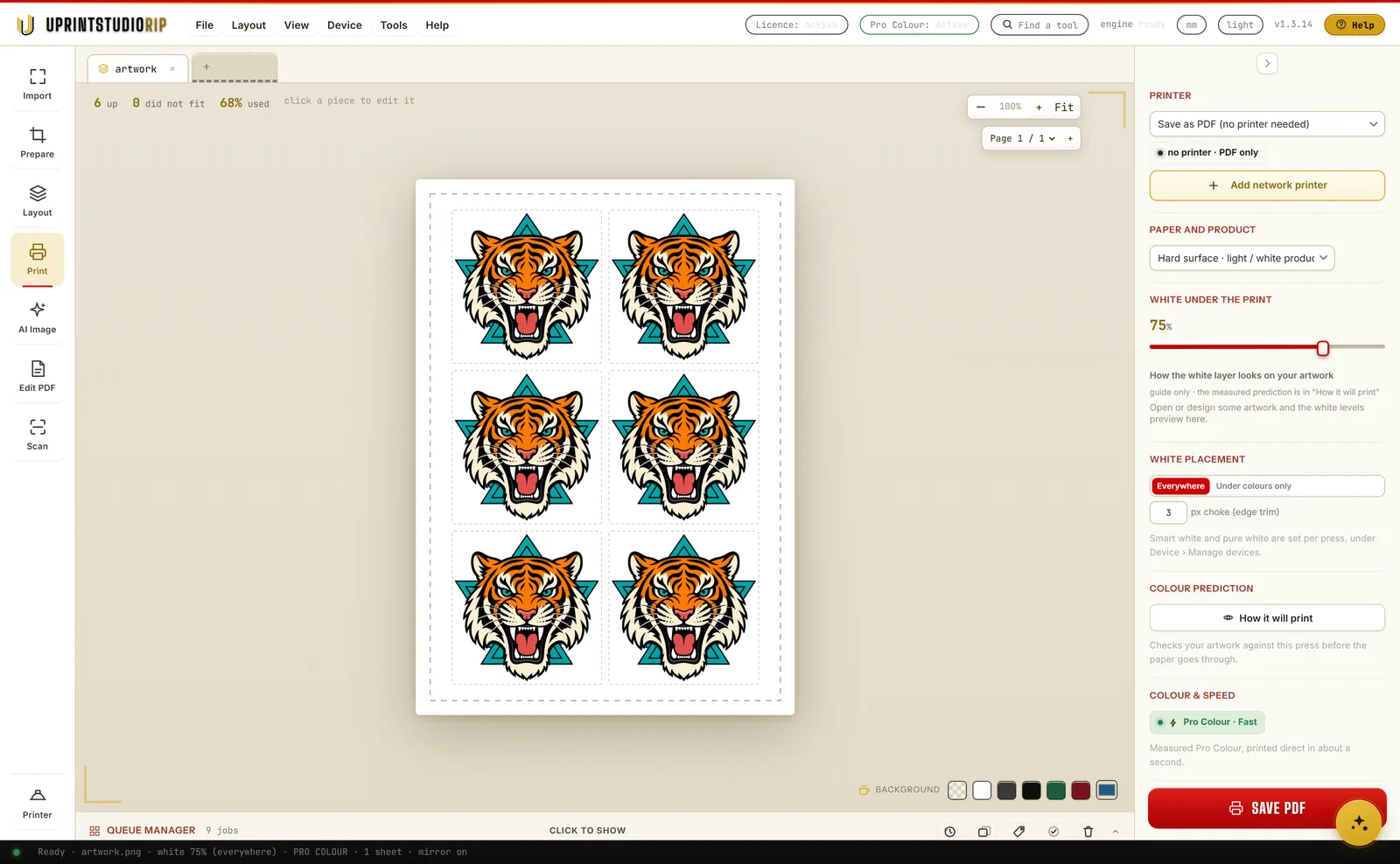
The white layer
See your white before you print it.
On dark and clear products the white layer under your artwork decides whether the colour sings or sinks. Too little and the job is muddy. Too much and you are pouring the most expensive toner in the machine onto the floor.
UPrint shows you that layer on screen, per job, before a sheet moves. Drag it and watch what your press is about to do.
The working range. Colour sits up on the fabric and you are not spending white you do not need. Dark garment is preset to 60%.
Check it, then print it
The problems, the white and the cost, before you press.
White toner in your press
On most presses, white takes the black slot.
On the presses we drive, white is not an extra station. It takes the black one. One slot holds white or black, and you swap the cartridge to change which. On some machines there is no black toner in the building at all.
That is real. No software removes it.
What we do is stop it being your problem. The white layer is built in software, per job, from your own artwork. You choose how much and whether it goes under the colour or over it, on screen, before a sheet moves.
And when white is sitting in the black slot, your blacks are built from the colours that are still loaded instead of the job failing. You set it once and get on with the day. You do not walk to the machine to change your mind.
White under the colour
For dark and clear products. The white goes down first so the colour has something to sit on.
White over the colour
For the jobs that need it. Same job, same screen, no trip to the machine.
Black without black toner
When white is in the black slot, your blacks come from the remaining colours rather than failing.
Colour measured on a real press
Stock profiles are written for an offset press. Yours is not one.
Most RIP software for these machines hands your press a stock colour profile written for an offset printing press on coated paper. We ran all 21 CMYK profiles in the Windows colour store through the exact path the software would use, and read off what each one asks the press to lay down.
They all landed in the same place. Those profiles ask for 179 to 211 percent ink. Our environments do the same work on 81 to 89 percent. They are built for a press that keeps responding past 60 percent drive. These engines do not.
Roughly double the toner, for colour that is further away, on every sheet.
Got your own ICC profile? Print with it. In the Print pane, Add colour profile loads your printer’s own CMYK profile. The colour comes from your profile, and the app still makes the white. Free, in both editions.
Export to any format
It is your artwork. Take it anywhere.
Nothing you make is locked in this software. Send a print ready PDF to a trade printer, a transparent PNG to the web shop, or a lossless TIFF to whoever asked for one. Five formats, one menu, one click.
| Format | What it is for |
|---|---|
| Print ready. The one you send to a press. | |
| PNG | Transparent, for web shops and mockups. |
| TIFF | Lossless, for print work that must not be squashed. |
| JPEG | The everyday one, when that is all that is wanted. |
| BMP | For the old machine in the corner that still asks for it. |
Everything else in the app
Everything between the file and the sheet.
Start this month, or own it for good.
Already own a compatible press? The RIP is sold on its own and works with the press you have. One licence runs on two computers. Prices are in US dollars, and tax is worked out at checkout for your country.
For South African businesses: pay UPrint Global CC in Rand by card. Prices include 15% VAT and you get a UPrint tax invoice to claim it back. No account needed: pick a plan, fill in your invoice details and add your card.
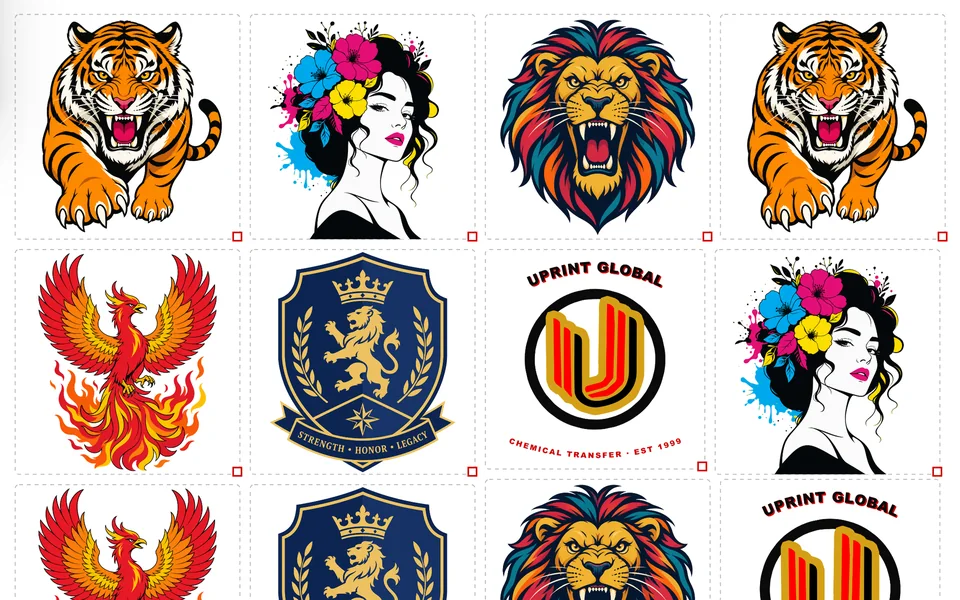
Adds a full drawing board in the same window: trace to vector, edit every node, AI artwork.
You pay on Paystack’s secure page. Your order code comes by email. Questions? Contact us.
You pay on Polar’s secure page. Your order code comes by email. Questions? Contact us.
Monthly gets you the same software as the once off, updates included, and stops the day you stop. Windows 10 64 bit (21H2 or newer) or Windows 11, and a 1440 x 900 screen or larger. Signed installer, publisher UPrint Global CC.
UPrint Studio DTF RIP: DTF up to 45 cm (17.7 in) wide
For DTF printers with Epson XP600 or i1600 heads, run by PrintExp, on a page or a roll, up to 45 cm (17.7 in) wide. On a wider printer it prints jobs up to 45 cm (17.7 in). It is the Studio RIP download with DTF switched on by your licence. Needs Windows 10 or 11 for now. Prices are in US dollars, plus tax worked out at checkout. Try it first: get the 7 day free trial and pick DTF printer when it starts.
For South African businesses: pay UPrint Global CC in Rand by card. Prices include 15% VAT and you get a UPrint tax invoice to claim it back. No account needed: pick a plan, fill in your invoice details and add your card.
You pay on Paystack’s secure page. Your order code comes by email. Questions? Contact us.
You pay on Polar’s secure page. Your order code comes by email. Questions? Contact us.
Find your printer
Will it work with my press?
Which printers does it drive?
White toner printers
Both editions, Studio RIP and Design RIP. Most of these were discontinued years ago, and shops run them every day. Old is fine.
OKI
- Pro8432WT
- C711WTThe same machine as the ES7411WT and the Pro7411WT.
Converted machines
- OKI C711, C712 and C833Converted to run white toner in the black slot, and others like them.
Sublimation printers
On their own Windows driver, in Studio RIP and Design RIP: add the RGB profile your ink maker supplies. On a PrintExp board, with DTF on your licence: the Studio DTF RIP or Design RIP with DTF.
Own Windows driver
- Sublimation printersAdd the RGB profile made for your printer, ink and paper (.icc or .icm).
PrintExp board
- Sublimation printers with no whiteSet up from one chart print. With the Studio DTF RIP or Design RIP with DTF.
Running a DTF printer? DTF prints from the Studio DTF RIP or Design RIP with DTF.
Your printer not on the list?
Want to add your printer to our software?
Tell us the make and model. We tell you straight whether it works today, and what it would take if it does not.
support@uprintsoftware.com · +27 81 246 0010
Can I design in it?
Not in Studio RIP. It prepares, lays out and prints, and it expects the artwork to arrive finished from Illustrator, CorelDRAW, Affinity or wherever you work. If you want to draw and trace inside the software, that is Design RIP.
Do I need to own any printer to use the software?
No. Without a printer you can still use it to prepare artwork and export it: bring in the file, clean it up, lay out the sheet, then save it as a file. UPrint Studio RIP exports PDF, PNG, TIFF, JPEG and BMP. UPrint Design RIP lets you design the artwork too, and adds SVG, AI, EPS, PSD, DXF and WEBP.
Why would I switch from my old RIP to UPrint?
To save money, time and training, and to get a print that comes out right every time, without losing what works. For DTF, your colour and printer settings come with you from one print of our charts, and you try UPrint on your own printer for 7 days with no card. Why switch, in full, with a savings calculator.
Do I need to buy a UPrint printer as well?
No. If you already own a compatible press, the software is sold on its own and works with the press you have.
What happens after I pay?
You get an order code and a download link. Install, enter the code, and it activates itself on that computer. Your colour environment installs with it, so there is nothing to load by hand.
How many computers?
Two. One order code runs on two computers in your business, and you can reinstall on them any time with the same code. A free trial runs on one computer. If a machine dies or you replace it, send us your order code and we will move you across.
Can I try it before I pay?
Yes. Download the free trial and the full software runs for 7 days on your own computer. No card is needed. Not a cut down demo, the same build the paying customers get.
If I pay monthly, can I switch to owning it later?
Yes. Buy the once off whenever it suits you and the monthly stops. Nothing on your computer changes and no work has to move.
Try Studio RIP free for 7 days
Stop guessing at the most expensive layer.
Try it free for 7 days, no card needed. Install it today, print with it today.