
Guide · UPrint Design RIP · DTF
Set up your DTF printer and copy your colour
Two short jobs you do once. About 15 minutes for both. You need the app open, PrintExp open with the printer on, and the RIP you use now (for example Maintop).
Guide 1: Set up your printer
The app learns your printer from one small print: the ink order, the resolution and the passes.
Before you start
- UPrint Design RIP with DTF, open.
- PrintExp open, the printer on, film loaded.
- The RIP you use now (for example Maintop).
- About 12 cm (4.7 in) of film. The test chart is a 10 x 10 cm (3.9 x 3.9 in) square.
1Pick the DTF printer
Open Print on the left. In Print to, pick DTF roll.
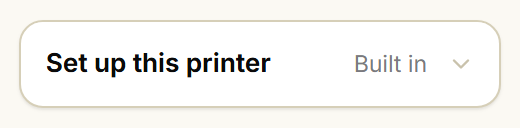
Scroll down the right side to Set up this printer.
It says Built in. The app has settings for an XP600 printer ready.
Is your printer not an XP600 with K C M Y and 4 white, or are you not sure? Do this guide.
2Open Set up this printer
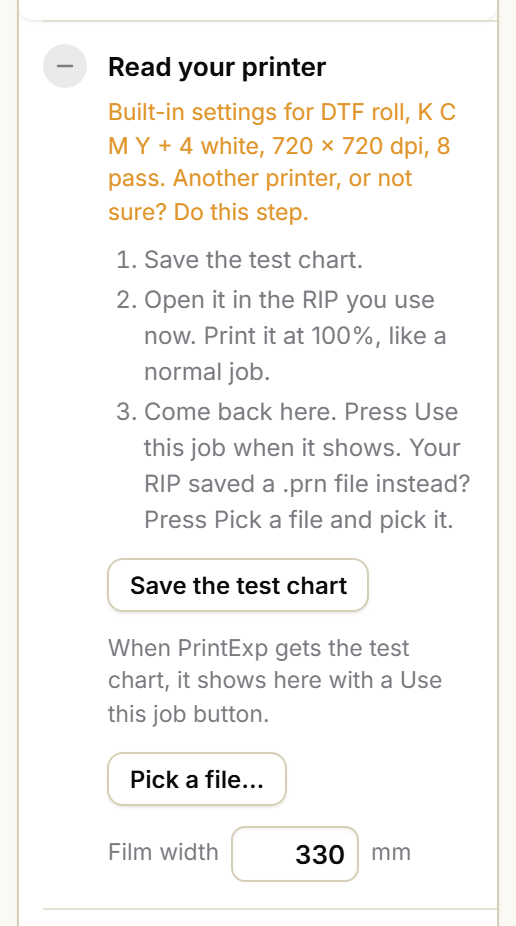
Press Set up this printer. Three steps open. Each has a grey dash: it uses the built-in settings.
Step 1, Read your printer, tells you what to do in three lines.
3Save the test chart
Press Save the test chart. Save it on your Desktop.
The file is called UPrint DTF test chart 100mm.png.

4Print the test chart from your RIP
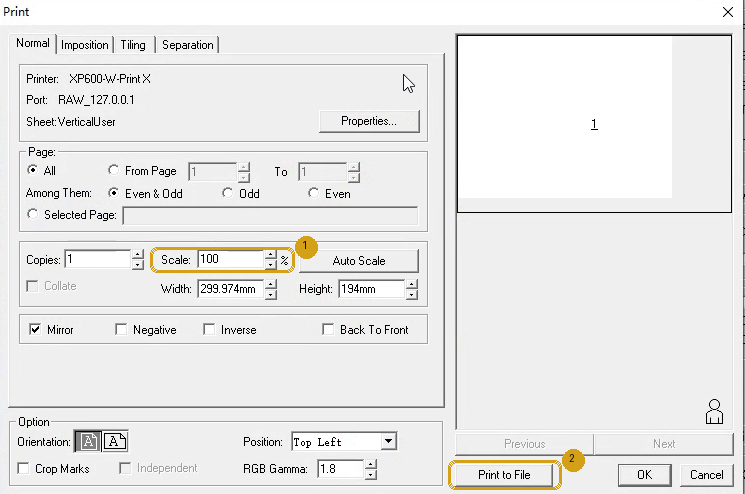
Open the test chart in the RIP you use now. In Maintop: File, then Load image.
Print it at 100%, the same way you print a normal job.
- Your RIP sends jobs to PrintExp? PrintExp gets the chart and prints it. That is fine.
- Your RIP prints to a file (Maintop: Print to file)? Save the .prn file on your Desktop. You do not need to print it.
Do not make the chart bigger or smaller. The app reads it at 10 x 10 cm (3.9 x 3.9 in).
5Back in UPrint: use the job
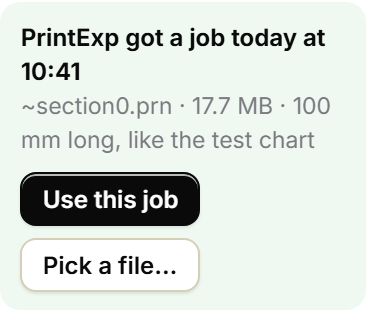
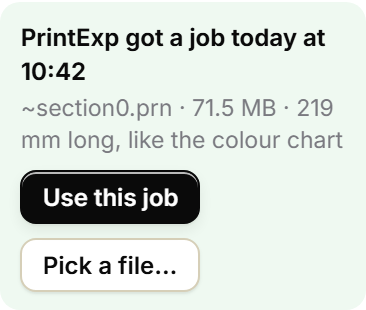
A green box shows: PrintExp got a job today at ..., 100 mm long, like the test chart (3.9 in).
Press Use this job.
No green box? Your RIP saved a .prn file instead. Press Pick a file... and pick that file.
6Read the result
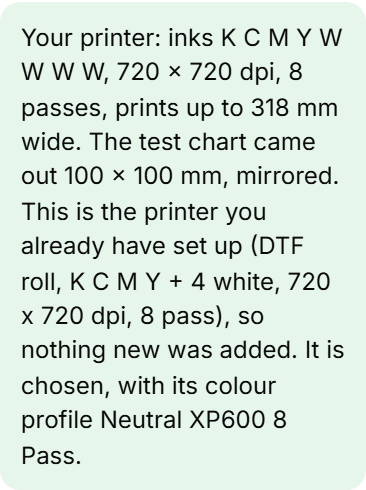
Step 1 gets a green tick. The green box says what the app read, for example:
Your printer: inks K C M Y W W W W, 720 x 720 dpi, 8 passes, prints up to 318 mm wide.
That is 12.5 in wide. The words stay there. The top of the box now says Ready.
7Check the ink order
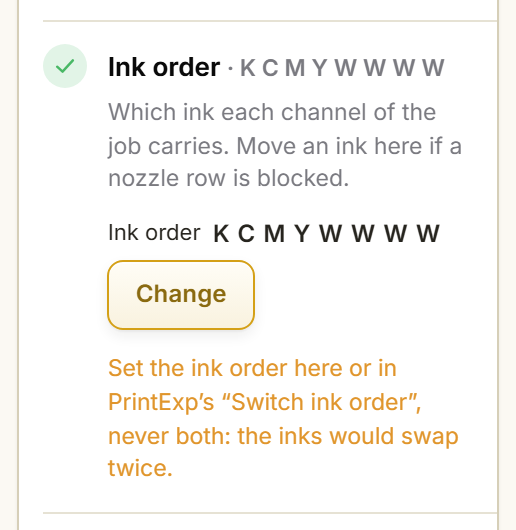
Step 2 shows which ink each channel carries. The app read it from your print.
Change it only when a nozzle row is blocked: press Change and move that ink to a spare channel.
Change the ink order here or in PrintExp's "Switch ink order". Never both: the inks would swap twice.
Guide 2: Copy your colour
No colour profile for your printer and ink? The app copies the colour of the RIP you use now. It reads how much of each ink your RIP puts down, square by square, and does the same.
Before you start
- Guide 1 done (step 1 has a tick, or your printer is the built-in XP600).
- The colour settings you use for customer jobs, ready in your RIP.
- About 23 cm (9.1 in) of film. The colour chart is 203 x 219 mm (8 x 8.6 in).
1Open step 3, Colour
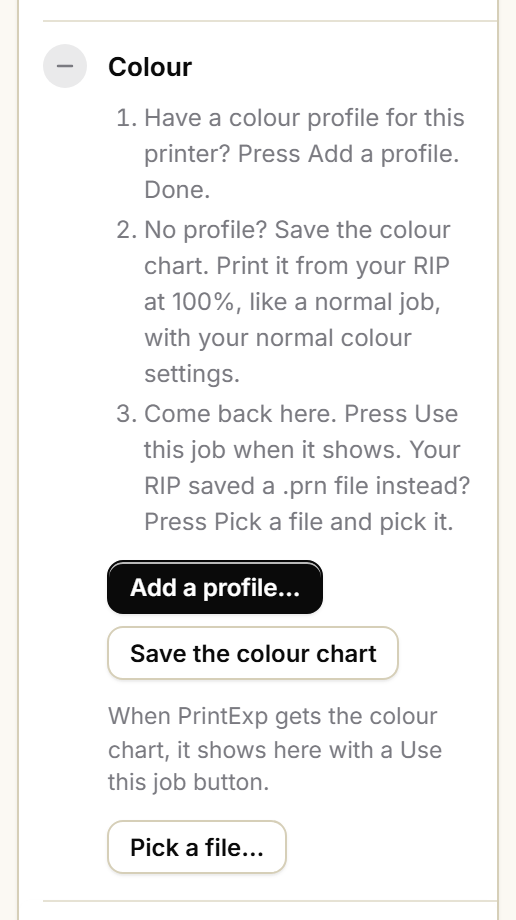
In Set up this printer, go to step 3, Colour.
Do you have a colour profile (.icc) made for this printer, ink and film? Press Add a profile..., pick it, and you are done.
No profile? Go on with step 2.
2Save the colour chart
Press Save the colour chart. Save it on your Desktop. The file is called UPrint-DTF-colour-chart.png.
3Print the colour chart from your RIP
Open the colour chart in the RIP you use now. Print it at 100% with your normal colour settings: the ones you use for customer jobs.
Do not change any colour setting for this print. The app copies what your RIP does now.
Your RIP prints to a file? Save the .prn file on your Desktop.
4Back in UPrint: use the job
A green box shows in step 3: PrintExp got a job ..., 219 mm long, like the colour chart (8.6 in).
Press Use this job. Reading takes up to a minute.
No green box? Press Pick a file... and pick the .prn your RIP saved.
5Read the result
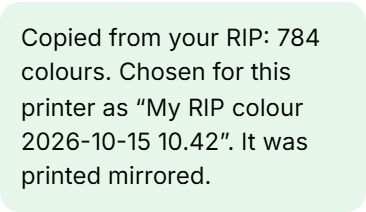
Step 3 gets a green tick and says, for example:
Copied from your RIP: 784 colours. Chosen for this printer as "My RIP colour" with the date and time.
Each copy gets its own date and time. An older copy is never replaced.
6Check it is chosen, then print a test
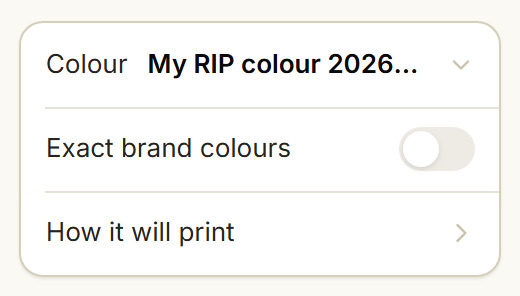
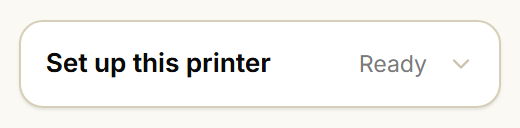
At the top of the panel, Colour shows My RIP colour with the date. Set up this printer says Ready.
Print one real job. Hold it next to the same job from your old RIP.
If you get stuck
| You see | What it means | Do this |
|---|---|---|
| "PrintExp has no new test chart job" (or colour chart) | PrintExp did not get the chart, or your RIP saved a file. | Print the chart again, or press Pick a file... and pick the .prn your RIP saved. |
| No green box and no "When PrintExp gets..." line | PrintExp is not on this PC (for example you use a Mac). | Press Pick a file.... On the PrintExp PC the job is in PrintExp's folder, then temp, then the newest folder: ~section0.prn. |
| The green box shows a job you did not mean | The app offers the newest job that is as long as the chart. | Press Use this job anyway: if it is not the chart, the app says so and does not offer it again. Then print the chart again. |
| A red message after Use this job or Pick a file | The file is not the right chart, or it was scaled. | Print the chart again at 100%, then try again. |
| The colours still look different from your old RIP | The chart was printed with other colour settings. | Print the colour chart again with your normal settings, and copy again. The new copy is chosen; the old one stays in the Colour list. |
Still stuck? Contact us and send the .prn file your RIP made. We look at it with you.
Set up and ready? Next: how to print DTF transfers, step by step.
Try it on your own printer
7 day free trial, no card. Every tool, on your own computer. Download Design RIP and pick DTF printer when it starts. Install it on the Windows PC that runs PrintExp, or on a Mac that saves the jobs for that PC.
Download the free trialOn day 8 the app locks until you buy. Pay with the same email and it unlocks by itself. One free trial per computer and per email.
More guides
- DTFHow to print DTF transfers, step by stepFrom artwork to a pressed shirt: the steps, and what the RIP does in each one.
- DTFBuild a DTF gang sheet and fill the rollLay out a page or a roll of film, and fill the roll with one button.
- DTFMoving from Maintop: bring your DTF settings to UPrintBring the printer settings and the colour you have in Maintop, from two prints.
- DTFDTF RIP software on a Mac: what works todayWhat you do on the Mac, and what the Windows PC with PrintExp does.
- White tonerSet up the RIP for your OKI white toner printerPick your OKI model, set the white, see where it goes, fill a sheet and print.