
Guide · UPrint Design RIP · DTF
How to print DTF transfers, step by step
A DTF transfer is printed on film, with white ink behind the colour. Powder goes on the wet print, heat cures it, and a heat press puts the design on the garment.
Here is each step, and what the RIP does in it.
The steps at a glance
- 1Get the artwork readyIn the RIP
- 2Set the whiteIn the RIP
- 3Mirror itIn the RIP
- 4Lay out the sheet or rollIn the RIP
- 5Print on filmThe printer, through PrintExp
- 6Powder the wet printAfter the printer
- 7Cure the powderAfter the printer
- 8Press it onto the garmentHeat press
- 9Peel the filmAfter the press
First time on this printer? Set it up once, from one small print: Set up your DTF printer and copy your colour.
The RIP steps
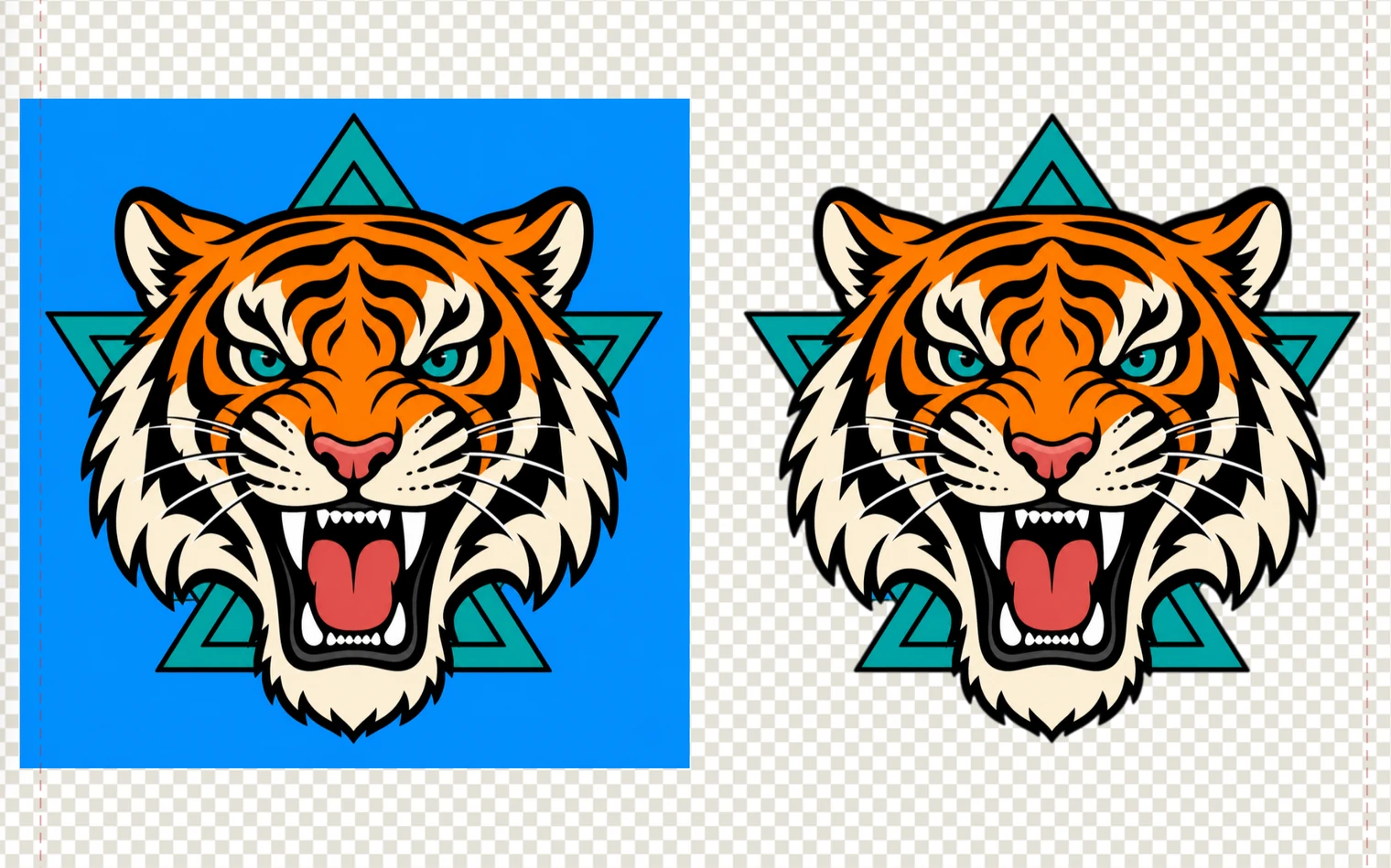
1Get the artwork ready
White prints wherever any other ink prints. So a box of background colour around a logo prints as a box, white and all.
Take the background off first, and keep a see-through background (PNG).
Both editions take a background off. Design RIP also traces a logo to clean vector, and its pen tool fixes it.
2Set the white
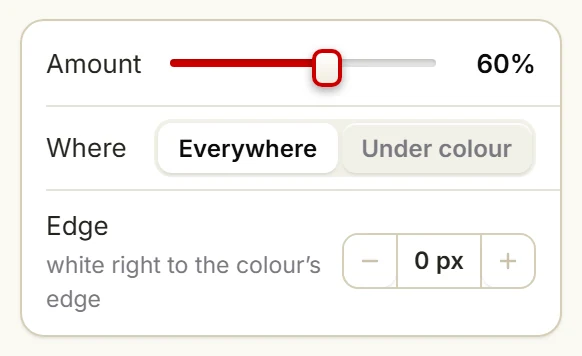
Press Print and pick DTF roll in Print to. Then, under White:
- Amount: how much white goes down.
- Where: Everywhere or Under colour.
- Edge: the white stops this many pixels inside the colour, so no white shows at the edge.
3Mirror it
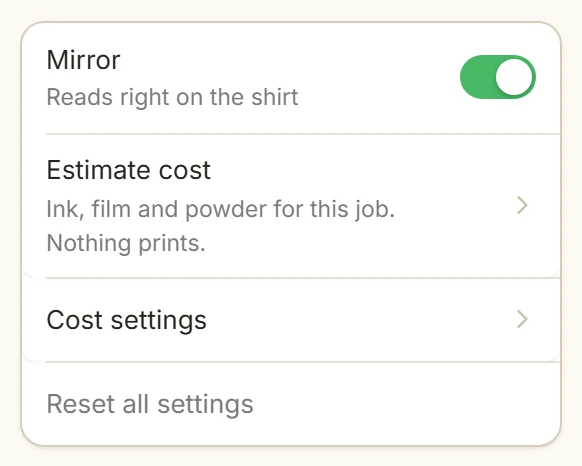
The film goes face down on the garment, so the print on the film is mirrored.
Leave Mirror on. The app says it: Reads right on the shirt.
4Lay out the sheet or roll
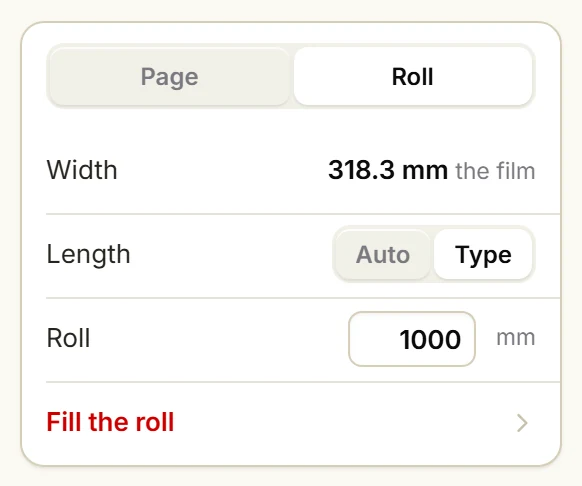
Under Sheet, pick Page or Roll. Put as many designs on the film as fit.
On a roll, Fill the roll repeats a logo down the whole roll: Build a DTF gang sheet.
5Print on film
Press Print.
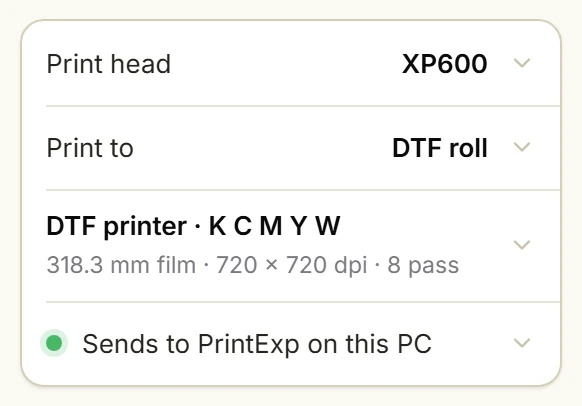
On the Windows PC that runs PrintExp, UPrint sends the job to PrintExp and checks that PrintExp got all of it.
Sends to PrintExp on this PC
On a Mac, UPrint saves the job and PrintExp prints it on the PC: DTF on a Mac.
After the printer: powder, cure, press, peel
- Powder: cover the wet print with hot melt powder, and shake off what does not stick.
- Cure: heat the powder until it melts onto the ink.
- Press: lay the film face down on the garment and press it with a heat press.
- Peel: take the film off, hot or cold, as your film says.
Use the temperature, the time and the peel that your film and powder maker gives. They change from one film and powder to the next, so we do not give one number for all.
The RIP has no part in these steps. Its job ends when the print on the film is right.
Which DTF printers
UPrint drives roll DTF printers on a Hoson board, run by PrintExp: the DTF printer list. Moving from another RIP? Bring your Maintop settings.
Try it on your own printer
7 day free trial, no card. Every tool, on your own computer. Download Design RIP and pick DTF printer when it starts. Install it on the Windows PC that runs PrintExp, or on a Mac that saves the jobs for that PC.
Download the free trialOn day 8 the app locks until you buy. Pay with the same email and it unlocks by itself. One free trial per computer and per email.
More guides
- DTFSet up your DTF printer and copy your colourTeach the app your printer from one small print, then copy the colour of the RIP you use now.
- DTFBuild a DTF gang sheet and fill the rollLay out a page or a roll of film, and fill the roll with one button.
- DTFMoving from Maintop: bring your DTF settings to UPrintBring the printer settings and the colour you have in Maintop, from two prints.
- DTFDTF RIP software on a Mac: what works todayWhat you do on the Mac, and what the Windows PC with PrintExp does.
- White tonerSet up the RIP for your OKI white toner printerPick your OKI model, set the white, see where it goes, fill a sheet and print.