
Guide · UPrint Design RIP and Studio DTF RIP · DTF
Moving from Maintop: bring your DTF settings to UPrint
You have Maintop set up the way you like it. You do not need to type those settings again. UPrint reads them from two prints that Maintop makes: one small test chart and one colour chart.
What carries over, and how
| In Maintop | In UPrint | Where |
|---|---|---|
| Which ink is on which channel | Read from your print of our test chart | Set up this printer, step 1 |
| Resolution and passes | Read from the same print | Set up this printer, step 1 |
| Your colour: how much C, M, Y and K ink Maintop lays | Copied from your print of our colour chart | Set up this printer, step 3 |
| A colour profile (.icc) made for your printer, ink and film | Added as it is | Set up this printer, step 3: Add a profile |
| How much white, and where | Not copied: you set it per job | White: Amount, Where, Edge |
Before you start
- Maintop, with the colour settings you use for customer jobs.
- UPrint open, on the PC that runs PrintExp, with DTF roll picked in Print to.
- About 35 cm (13.8 in) of film: the test chart is 10 x 10 cm (3.9 x 3.9 in), the colour chart 203 x 219 mm (8 x 8.6 in).
The three steps
1Print our test chart from Maintop
In UPrint, open Set up this printer and press Save the test chart.
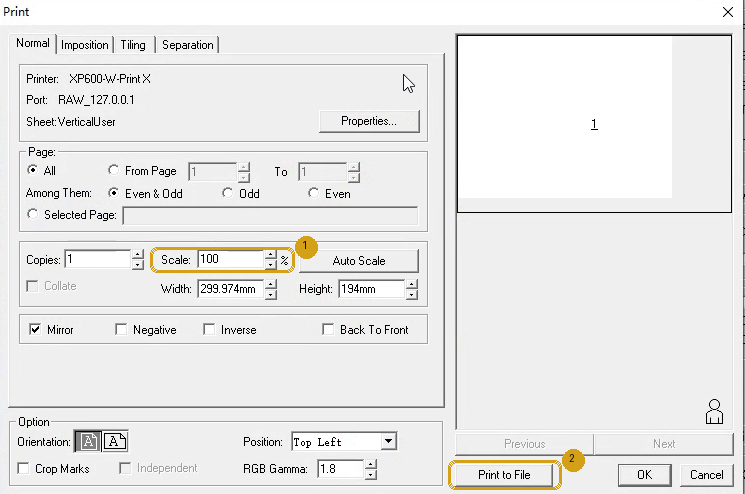
In Maintop: File, then Load image, and pick the chart. Print it at 100%.
- PrintExp got the chart? UPrint offers that job: press Use this job.
- Maintop saved it to a file (.prn)? Press Pick a file... and pick that file.
2Copy your Maintop colour
In step 3, Colour, press Save the colour chart.
Print it from Maintop at 100%, with your normal colour settings. Do not change any colour setting for this print.
Then Use this job or Pick a file..., as in step 1.
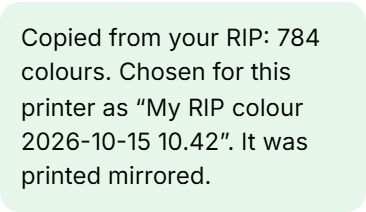
Copied from your RIP: 784 colours. Chosen for this printer as "My RIP colour" with the date and time.
3Set the white yourself
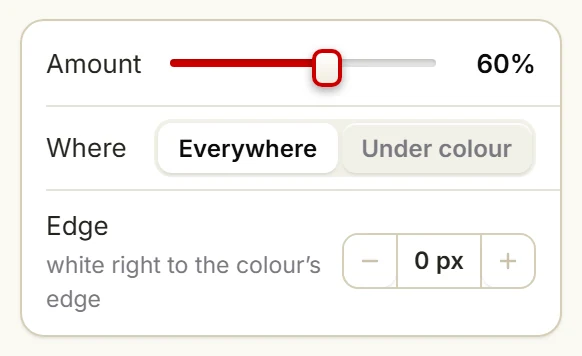
The white is not part of the copy. Set it for each job under White:
- Amount: how much white.
- Where: Everywhere or Under colour.
- Edge: the white stops this many pixels inside the colour.
Start near the white you use in Maintop, and print one test.
Every step with a picture: Set up your DTF printer and copy your colour.
What the copy does, and what it does not
- It reads, square by square, how much of each ink Maintop lays. UPrint then lays the same ink for each colour.
- It copies ink, not a colour measurement. So the app does not show a colour prediction for a copied colour. Hold your first real print next to the same job from Maintop.
- Each copy gets its own date and time. An older copy is never replaced, and you can go back to it in the Colour list.
Maintop stays as it is
UPrint changes nothing in Maintop. Keep it while you compare prints side by side.
Try it on your own printer
7 day free trial, no card. Every tool, on your own computer. Download Design RIP and pick DTF printer when it starts. Install it on the Windows PC that runs PrintExp, or on a Mac that saves the jobs for that PC.
Download the free trialOn day 8 the app locks until you buy. Pay with the same email and it unlocks by itself. One free trial per computer and per email.
More guides
- DTFSet up your DTF printer and copy your colourTeach the app your printer from one small print, then copy the colour of the RIP you use now.
- DTFHow to print DTF transfers, step by stepFrom artwork to a pressed shirt: the steps, and what the RIP does in each one.
- DTFBuild a DTF gang sheet and fill the rollLay out a page or a roll of film, and fill the roll with one button.
- DTFDTF RIP software on a Mac: what works todayWhat you do on the Mac, and what the Windows PC with PrintExp does.
- White tonerSet up the RIP for your OKI white toner printerPick your OKI model, set the white, see where it goes, fill a sheet and print.